
Video background removal for Windows
AI cuts the person out of your video
Sukeru Video removes the background around the person in a video and exports the result with transparency, ready for your edit. There are no masks to draw and no frames to fix by hand.
Everything runs on your PC, and your videos are never uploaded.
Free to try. No credit card required.
How it works
Three steps
No masks to draw, no frame-by-frame work.
-
01
Open
Drag a video into the window. MP4, MOV, MKV, WebM, AVI, and WMV are supported.
-
02
AI cuts it out
AI processes every frame. Before you export, drag the seek bar to check the result anywhere in the video.
-
03
Export
Pick a format for the job: WebM for the web, CineForm for editing software, or PNG-in-MOV for a lossless master.
Features
Features
Everything stays on your PC
No frame of your video is sent anywhere. Family clips and work footage are processed without leaving your machine, and the app works offline.
Automatic cutout
AI follows the person through every frame and removes the background. There are no masks to draw or frames to fix. Check the result with the seek bar before you export.
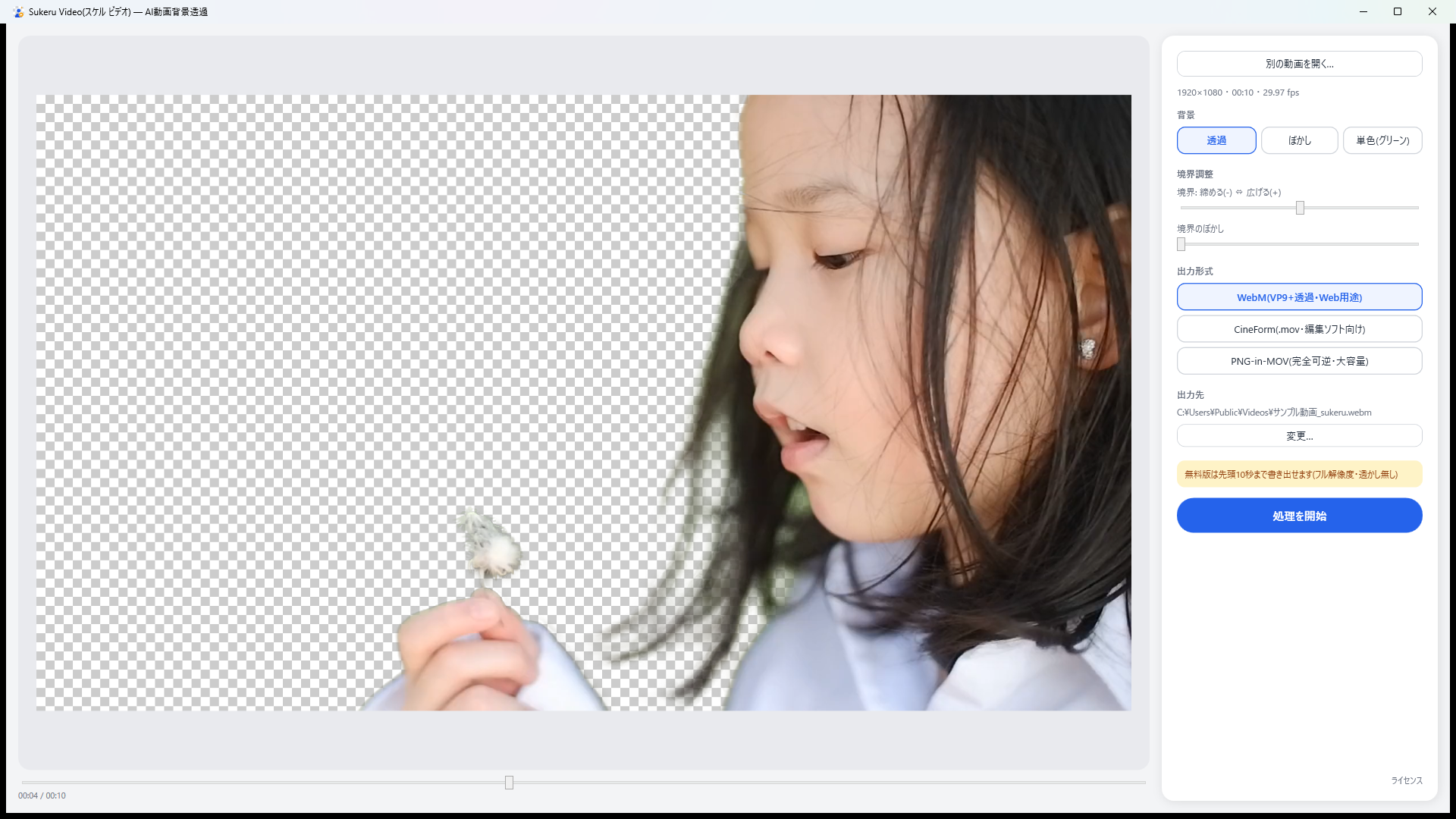
Ready for your editor
CineForm (.mov) files have been tested in Premiere Pro and DaVinci Resolve and import with their alpha channel. WebM (VP9) plays with transparency in web browsers. Green-screen output is also available.
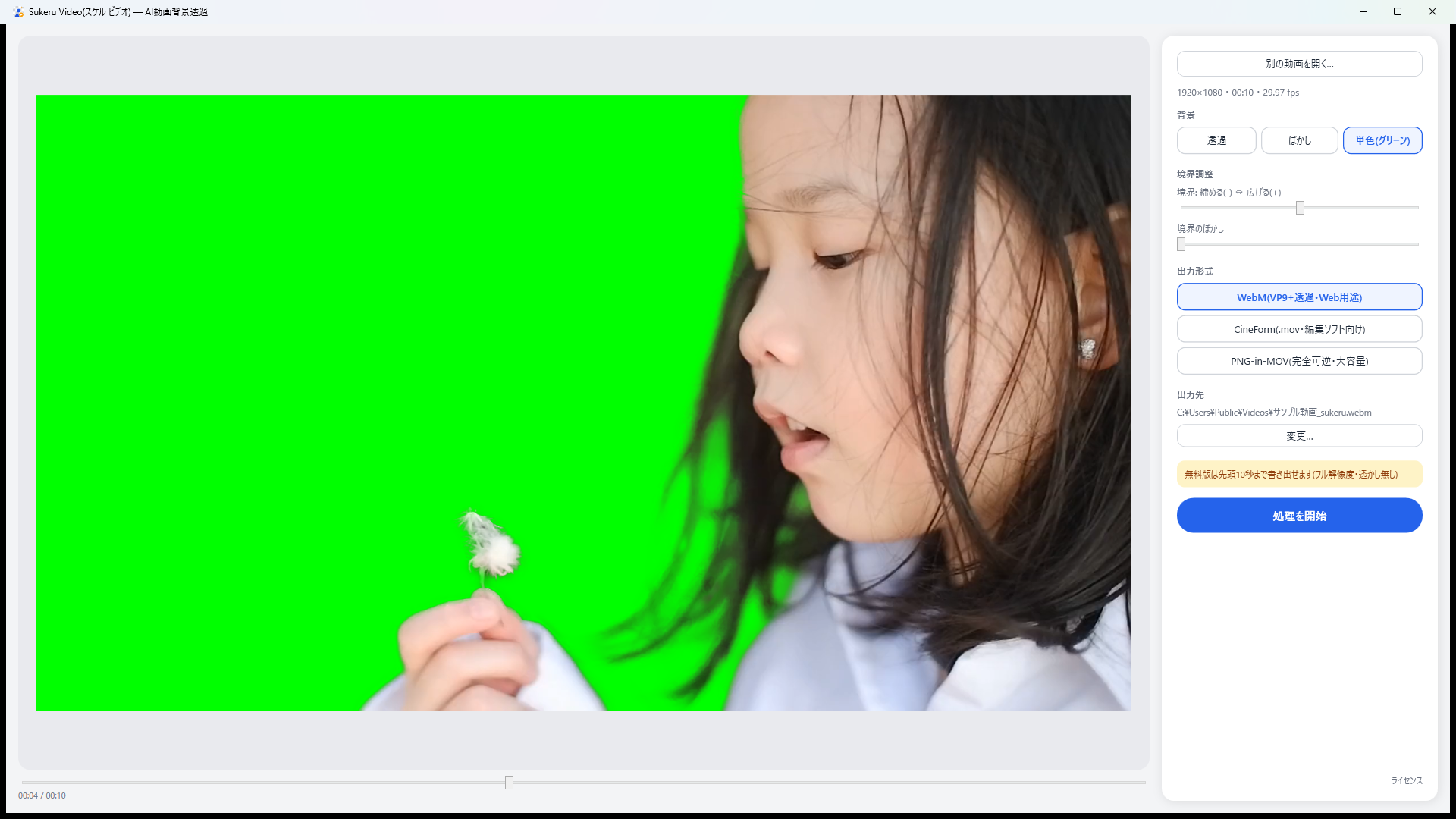
Also included
- Background: transparent, blurred, or green screen
- Sliders to shrink, expand, and feather the edge
- Batch processing of multiple files (Pro)
- Runs without a GPU, and switches to a higher-quality model automatically when one is available
Pricing
One-time purchase, no subscription
The free version exports at full quality. Try it on your own footage, then buy Pro once if you need full-length exports. There's no subscription.
-
Free
For checking results
Free
- Full resolution, no watermark, all formats
- Exports the first 10 seconds of each video
-
Recommended
Pro (one-time)
Pay once
$6.99
- Exports the whole video
- Batch processing of multiple files
- No subscription, no expiry
FAQ
Frequently Asked Questions
Are my videos uploaded?
No. Everything, including the AI, runs on your PC, and the app works offline. To help improve it, the app sends only anonymous usage statistics, which never include your video.
What does the free version limit?
Exports stop after the first 10 seconds of the video. Resolution is not reduced and there is no watermark. Batch processing of multiple files is a Pro feature.
What kind of videos work best?
Videos with one clearly visible person give the best results. Accuracy can drop with several people in frame or fast movement.
Which editors can use the output?
CineForm (.mov) keeps its alpha channel in Premiere Pro, DaVinci Resolve, and other editors. WebM (VP9) is meant for browsers and web projects. PNG-in-MOV is a lossless master.
HEVC (H.265) videos won't open.
Your PC may need the HEVC Video Extensions. When you open such a video, the app explains how to install them.
Does it work without a GPU?
Yes. It uses a higher-quality model on PCs with a GPU and switches to a lighter model automatically on PCs without one.
Try it free
Try it on your own footage
The free version exports the first 10 seconds at full quality.
If it works for you, Pro is a one-time purchase that exports the whole video.