MOV / HEVC to MP4 · Windows
Turn phone videos into
MP4 that plays anywhere
Someone couldn't open the video you sent. Your editor or upload site won't accept it. Drop the .MOV / HEVC file in, press Convert, and you get a standard MP4 (H.264 / AAC).
Conversion runs entirely on your PC. Your videos are never uploaded.
Try the free version first. No credit card needed.
Problems
Trouble with .MOV files?
iPhones and other phones often save video as MOV / HEVC (H.265). The files are small for their quality, but many devices and apps cannot play them.
-
Apps and sites won't accept it
Editors, upload sites and online forms often reject .MOV files imported from an iPhone, and older players may not open them at all.
-
The person you sent it to can't open it
Family or a client can't play the video on their PC or phone. Older TVs and car navigation systems often can't play it either.
-
HDR footage looks washed out
It looks vivid on your phone but pale and faded everywhere else. HDR is the cause, though nothing on screen tells you so.
Solution
No settings. Drop it in and convert.
You never choose a codec or a bitrate. Pick one of two presets and the app handles the rest.
-
Point 01
MOV / HEVC to MP4 that plays anywhere
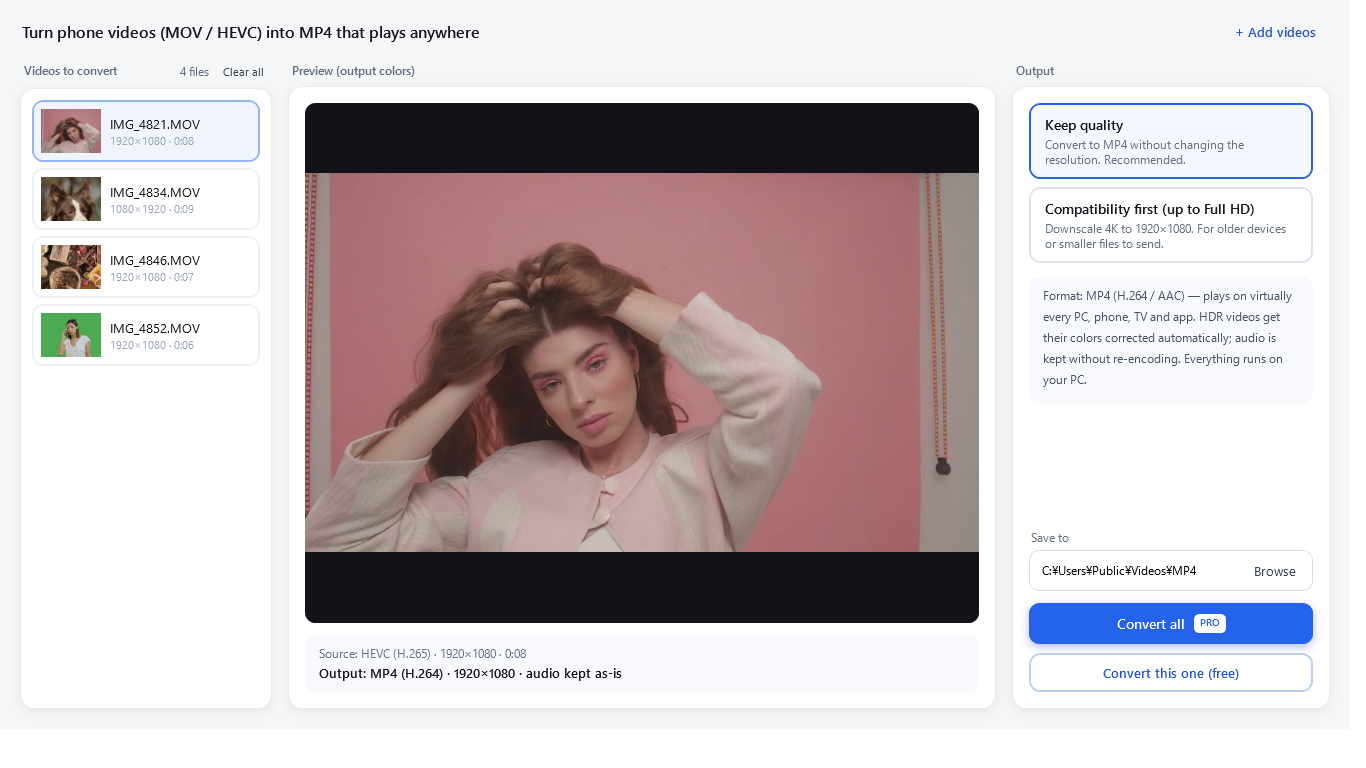
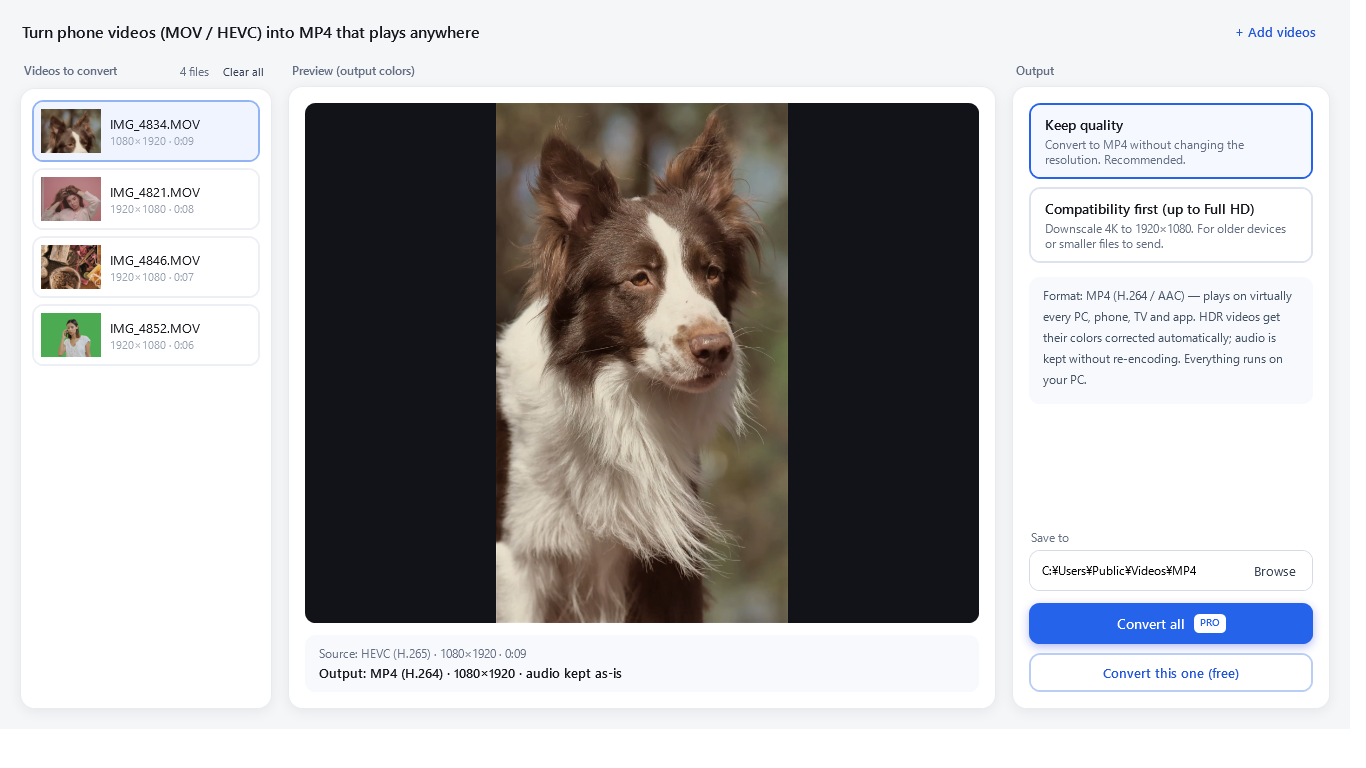
Drop your videos in and press Convert. The app writes MP4 with H.264 video and AAC audio, a format that plays on almost every PC, phone, TV and app.
- No settings to learn
- Audio kept as AAC, never re-encoded
- Portrait videos stay upright
-
Point 02
Automatic color correction for HDR
HDR (HLG) footage turns pale when converted as-is. The app corrects the colors during conversion, and the preview shows the result before you start.
- Corrects HLG colors automatically
- Preview the output colors first
- No need to check again afterwards
-
Point 03
No uploads. Everything stays on your PC
Conversion happens on your PC and your videos are never sent anywhere, whether they are family clips or work footage.
- Videos are never sent to a server
- Works without an internet connection
- Full quality and no watermark, even on the free version
Two presets to choose from
-
Keep quality
Converts to MP4 at the original resolution. The recommended choice if you are not sure.
-
Compatibility first (up to Full HD)
Scales 4K down to 1920×1080. Useful for older devices, or when you want a smaller file to send.
How it works
Three steps
There is nothing to set up first.
-
01
Drop in your videos
Drag .mov, .mp4 or .m4v files into the window and they are added to the list. You can add several at once.
-
02
Choose a preset
Pick "Keep quality" or "Compatibility first (up to Full HD)". The preview shows the output colors.
-
03
Convert and save
Choose a destination folder and press Convert. The free version converts one video at a time; Pro converts several at once.
Pricing
One-time purchase, no subscription
The free version keeps full quality and correct colors, with no watermark. It limits only video length and batch conversion.
-
Free
Check the results first
Free
- Full quality, correct colors, no watermark
- One video at a time, first 30 seconds of each
- Presets and preview without limits
-
Recommended
Pro (one-time)
Pay once, keep it
$3.99
- No limit on video length
- Convert several videos at once
- No subscription or monthly fee
* Prices shown are for the United States. See Microsoft Store for pricing in your region.
Formats
Supported formats
- Input
- .mov / .mp4 / .m4v (HEVC (H.265) 8-bit and 10-bit HLG, H.264)
- Output
- MP4 (H.264 video / AAC audio)
* Reading HEVC (H.265) video may require Microsoft's "HEVC Video Extensions" for Windows. If they are not installed, the app will guide you through the installation.
* PQ-based HDR such as Dolby Vision is not supported; the app tells you when a file uses it.
FAQ
Frequently Asked Questions
Are my videos uploaded to a server?
No. Conversion runs entirely on your PC, and your videos are never sent to or stored on the cloud or our servers.
How much can I do for free?
The free version converts one video at a time, up to the first 30 seconds of each, at full quality with no watermark. To convert full-length videos or several at once, buy Pro, a one-time in-app purchase.
Does the quality drop?
With "Keep quality", the resolution stays the same and the bitrate is kept close to the original. Audio is carried over as AAC without re-encoding, so the sound is unchanged.
What happens to HDR footage?
HLG-based HDR is corrected automatically so it does not look pale as an MP4, and you can check the result in the preview before converting. PQ-based HDR such as Dolby Vision is not supported.
It says I need "HEVC Video Extensions"
Reading HEVC (H.265) video may require Microsoft's "HEVC Video Extensions" for Windows. When you add such a file, the app shows you how to install them. If you only want to play the video on this PC, the extensions alone are enough. This app is for making an MP4 that other people, devices and apps can open.
Which versions of Windows are supported?
Windows 10 and Windows 11 (64-bit).
Get started
Convert it to MP4
before you send it
Drop it in, choose a preset, convert.
Try the free version with one of your own videos.
iPhone is a trademark of Apple Inc. This app is an independent product and is not affiliated with Apple Inc.