HEIC converter for Windows
Turn iPhone HEIC photos into JPGs that open anywhere
For when iPhone photos won't open on Windows, or a form only accepts JPG. Drag your images in, choose what they're for, and convert. It can also resize and shrink files under 2 MB, and everything runs on your PC.
Problems
Where HEIC gets in the way
HEIC, the format iPhones use for photos, keeps files small without losing much quality. But Windows and many websites still have trouble with it.
-
HEIC photos won't open on Windows
Photos copied from your iPhone arrive as .heic files, and some apps can't display them. People you send them to may not be able to open them either.
-
A form wants JPG under a size limit
Application forms and document portals often ask for something like "JPG, 2 MB max." You have to get both the format and the size right before the upload goes through.
-
Converting one photo at a time
Free web converters make you upload photos one by one, which takes time. You may also prefer not to send personal photos to someone else's server.
Features
Add images, choose a purpose, convert
The technical settings are built into presets. Add your images, pick what they are for, and convert.
-
Feature 01
Drag and drop to convert to JPG
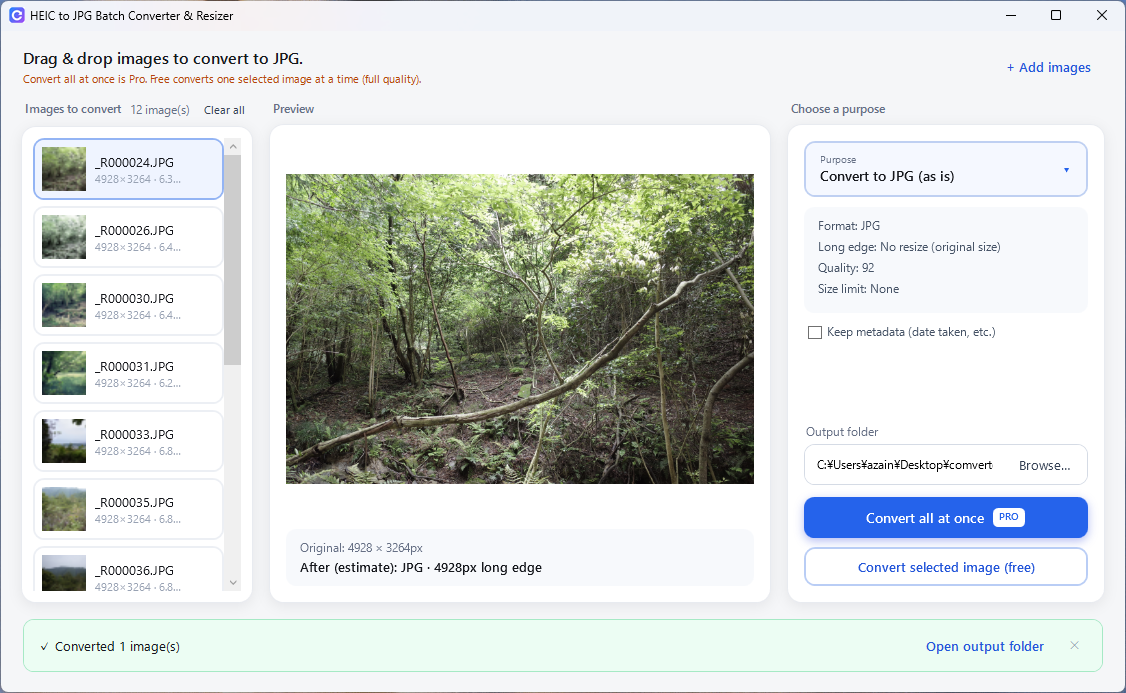
Drop HEIC, HEIF, WebP, or AVIF images into the window and they appear in a list. Check them in the preview, choose an output folder, and convert.
- Supports HEIC / HEIF / WebP / AVIF
- Preview before converting
- Choose an output folder and convert
-
Feature 02
Presets based on what you need
Choose "Convert to JPG (as is)", "For web & social media", or "For document upload (2 MB max)". The document preset adjusts quality automatically so each file fits under 2 MB. If you want to set the numbers yourself, Custom lets you choose long-edge size, quality, and a size limit.
- Pick a purpose, not a setting
- Document preset fits files under 2 MB
- Custom long-edge size, quality, and size limit
-
Feature 03
Nothing is uploaded
Conversion happens entirely on your PC, and your images are never sent anywhere. EXIF metadata such as the date taken and GPS location is removed by default. You can choose to keep it.
- Images never leave your PC
- Location and other EXIF data removed by default
- Option to keep metadata
How it works
Three steps to JPG
The default settings are ready to use, so you can start converting right away.
-
01
Add your images
Drag HEIC or other images into the window and they are added to the list. You can drop a whole folder too.
-
02
Choose a purpose
Pick a preset such as "Convert to JPG (as is)". Adjust long-edge size, quality, or size limit if you need to.
-
03
Convert and save
Choose an output folder and convert. When it is done, click "Open output folder" to go straight to your files.
Pricing
Free to start
The free version converts one selected image at a time, at the same quality as Pro and without watermarks. To convert many images at once, add Pro with an in-app purchase. Pro is a one-time purchase, not a subscription.
-
Included for free
Ready to use as soon as you install
Free
- HEIC / HEIF / WebP / AVIF → JPG conversion
- Preview before converting
- Long-edge size, quality, and size-limit settings
- Keep or remove metadata
- Convert one selected image at a time (full quality)
Converting multiple images at once requires Pro, a one-time in-app purchase.
* Supported formats and features may change in future updates.
* Opening HEIC files may require Microsoft's HEIF Image Extensions or HEVC Video Extensions (a paid extension from Microsoft). If they are missing, the app shows you how to get them.
FAQ
Frequently asked questions
Which image formats are supported?
The app opens HEIC, HEIF, WebP, AVIF, JPG, and PNG images and saves them as JPG. Custom settings also let you save as PNG.
Are my images uploaded to a server?
No. Conversion and resizing happen entirely on your PC, and your images are never sent to or stored in the cloud or on our servers.
How much can I do for free?
You can convert one selected image at a time for free, with no quality limits or watermarks. Converting multiple images at once requires the Pro in-app purchase.
What happens to metadata like date taken and location?
By default, EXIF metadata such as the date taken and GPS location is removed from the output JPGs. To keep it, check "Keep metadata (date taken, etc.)".
Which versions of Windows are supported?
Windows 10 and Windows 11 (64-bit).
Get started
Try converting a photo
Drag it in, choose a purpose, and convert.
Converting one image at a time is free, at full quality.